


5. Defining Classes and Their Hierarchies
Once you have produced an application framework, customize the application by adding your own classes and functions. The two tools designed specifically for object-programming are the Class Editor and the Hierarchy Editor. They simplify the design and maintenance of C++ projects by working directly with the project's class hierarchy and members. The editors themselves take care of many of the mundane details of file-oriented program development, such as opening and closing files and locating source code for particular member functions.These tools are suited for developing a class hierarchy from scratch, for adding classes to an application framework generated with AppExpress, and for browsing and editing pre-existing class hierarchies. They are especially useful for understanding the architecture of unfamiliar source code.
The Class and Hierarchy Editors can perform the same operations on classes and hierarchies; they differ only in their interface. The Class Editor's interface emphasizes member editing; the Hierarchy Editor's interface, through its graphical display, emphasizes inheritance relationships. Use one or the other, or both simultaneously, according to preference.
This chapter describes basic operations that may be performed with the Class and Hierarchy Editors. For a complete reference on these two tools, see Class Editor Reference, and Hierarchy Editor Reference.
Parsing and Browsing
The Class and Hierarchy Editors are C++ class browsers. These tools let you work with your source code in an object-oriented manner, rather than in the traditional file-oriented manner. The Class and Hierarchy Editors present you with a list of classes in your project, allow you to view the members of each class, and let you edit the member declarations and definitions directly, without performing the overhead of opening and closing files and locating source code for particular members. Changes made to classes or inheritance relationships in the Class or Hierarchy Editors are automatically changed in the underlying source code.To present you with a list of classes and members, the IDDE must parse the source code. By default, this is done automatically. When the IDDE detects that source code or project settings have changed since the last parse, it reparses the necessary files. If errors are encountered during parsing, messages are displayed in the Output window. You can double-click on the error message to open for editing the appropriate file at the point at which the error was detected.
How the class browsers expand macros
The parser used by the Class and Hierarchy Editors contains a fully functional C preprocessor. One significant difference between this parser and the Digital Mars C compiler is the way the parser expands macros.The parser treats an entire project as one "database" of code. Consequently, preprocessor macros defined in any header will expand in any subsequently parsed file. This can produce unexpected errors. For example:
// foo1.h ------------------------------------
#define pBar (pIndirect->pBar)
// . . .

// foo1.cpp ----------------------------------
#include <foo1.h>


// foo2.cpp ----------------------------------
struct A
{   int *pBar;    // ERROR! Expands to: int *
    (pIndirect-> pBar);
};
To avoid errors of this type, undefine the macro at the top of the file
where the error occurs (foo2.cpp).
Browsing library source code
If browsing source code that is based on MFC or some other large class library, it is convenient to turn off the display of library classes. To do so:- Choose Settings from the IDDE's Project menu.
- In the Project Settings dialog box, click the Directories tab.
- In the Browser Exclude Directories textbox, type the name of the directory containing the class library headers (for example, c:\dm\mfc\include).
- Click OK.
Class Editor
The Class Editor provides a list-based view of the class hierarchy. From within the Class Editor add classes, modify inheritance relationships, and view and edit class member declarations and definitions.To open a Class Editor window, do one of:
- Choose Class Editor from the Window menu's Goto View submenu.
- Click and drag the Class Editor icon from the Views toolbox to an empty area of the desktop.
- The Classes pane, which contains a list of classes.
- The Members pane, which contains a list of members of the current (highlighted) class.
- The Source pane, which displays member source code. You can edit the source code in this pane as in the Source window (see Editing Program Code, for a description of text editing features).
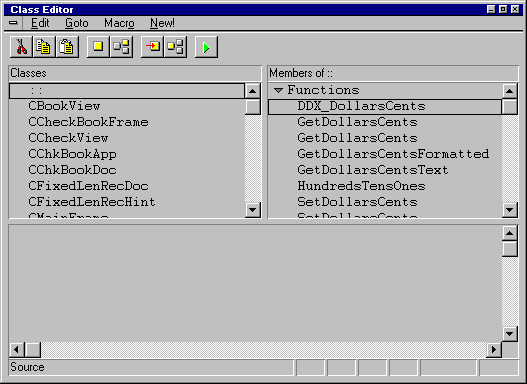
Figure 5-1 Class Editor window
The Class Editor window contains a standard menu bar and toolbar; pop-up menus are available in each pane. You can set options for the grouping, sorting, and display of classes and members in the Classes and Members panes in the Editing/ Browsing Settings dialog box. For a complete reference on Class Editor menus and options, see Class Editor Reference.
You can change the relative sizes of panes in the Class Editor window by first positioning the cursor over the line separating the panes. The cursor changes to a two-headed arrow. Press the left mouse button and drag the separator to the desired location.
To select a class in the Classes pane, click on it. Additional classes may be selected by holding down the Control key and clicking. By default, classes are displayed hierarchically, with derived classes below and indented relative to their bases. Classes with multiple bases are displayed beneath each of the bases. Triangular buttons to the left of base classes can be used to collapse and expand branches of the hierarchy. You can set an option to display classes alphabetically in the Editing/ Browsing Settings dialog box.
By default, class members in the Members pane are grouped into Functions, Data, and Typedefs. The tree structure can be expanded or collapsed by clicking on the triangular buttons to the left of the category names. To select a class member, click on it. Additional members can be selected by clicking while holding down the Control key. You can display a member declaration or definition in the Source pane by double-clicking on the member name.
Creating classes
You can create a class hierarchy consisting of new classes related to other classes by inheritance (derived or sibling classes), or create new top-level classes not related to any other class.Creating a top-level class
To create a new class hierarchy, first create a top-level class to serve as a base for the hierarchy.To create a new top-level class:
- Choose Add Top from the pop-up menu in the
Classes pane. The Add Class dialog box is displayed
(Figure 5-2).
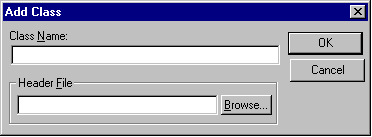
Figure 5-2 Add Class dialog box - Type a name for the new class.
- Click OK.
Creating a derived class
After a base class exists, you may create derived classes- specialized versions of the base class.To create a new derived class:
- Select the base class of the new class.
- Choose Add Derived from the pop-up menu in the Classes pane. The Create Derived Class dialog box opens. (This dialog box is similar to the Add Class dialog box.)
- Type a name for the new class.
- Click OK.
Creating a sibling class
You may also create a new derived class as a "sibling" to an existing class. Siblings have the same base class with the same access specifiers.To create a new sibling class:
- Select the class whose base class will be the base class of the new class.
- Choose Add Sibling from the pop-up menu in the Classes pane. The Create Derived Class dialog box is displayed.
- Type a name for the new class.
- Click OK.
Editing inheritance relationships
As your application evolves, you may want to restructure your class hierarchy. The Class Editor lets you add and delete connections between classes, as well as change the inheritance attributes.When altering inheritance relationships, the Class and Hierarchy Editors change only the class declarations. In particular, they do not change references to base classes and their members in a derived class's constructors or functions. If such references exist, you must change them manually in the source file.
Connecting to a base class
You can connect a class to a base class to make it a derived class of this base.To make one existing class derive from another existing class:
- Select the class that will be the derived class.
- Choose Connect Base from the pop-up menu in
the Classes pane. The Add Base dialog box opens
(Figure 5-3).
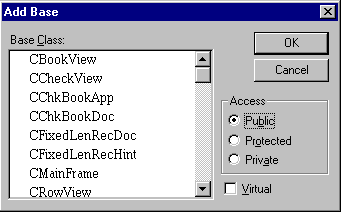
Figure 5-3 Add Base dialog box - From the listbox, select the class (or classes) to be this class's base class.
- Select the desired access specifier. Check Virtual if virtual inheritance is desired.
- Click OK.
Deleting a connection
You can also disconnect a derived class from a base class.To delete an inheritance relationship:
- Select a derived class.
- Choose Delete Base Connection from the pop-up menu in the Classes pane.
- A message box requests confirmation. Click Yes to delete the base connection.
Editing inheritance attributes
You can change a derived class's base class access specifier and virtual inheritance flag.To edit the base class access specifier:
- In the Classes pane, select the derived class.
In cases of multiple inheritance, select the base connection to edit by clicking on the instance of the derived class below the appropriate base.
- Choose Edit Base Attributes from the pop-up menu in
the Classes pane.
The Edit Base Attributes dialog box opens (Figure 5-4).
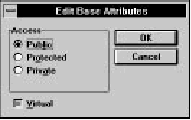
Figure 5-4 Edit Base Attributes dialog box - Select the desired access specifier. Check Virtual if virtual inheritance is desired. Click OK.
Working with class members
After creating a class, you can implement its functionality through member data and functions. You may add, delete, and edit class members through the Members pane and Source panes.A list of the members of the currently selected class is shown in the Members pane (Figure 5-5). By default, the member list is sorted into three categories: Data, Functions, and Typedefs. Within each category, items are sorted alphabetically. The colored diamond in front of each member identifies the access as public (green), protected (yellow), or private (red). Names of members defined as macros appear in red.
Note: Members that appear in red are not syntactically verified before source changes are saved back to the file.
The lists following each category header can be collapsed or expanded by clicking on the triangular button to the left of the category name.
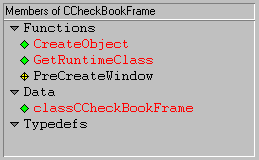
Figure 5-5 Members pane of Class Editor
Adding a class member
The first step in class implementation is to declare the data members and member functions.To add a class member:
- Choose Add from the pop-up menu in the Members
pane. The Add Member dialog box opens (Figure 5-6).
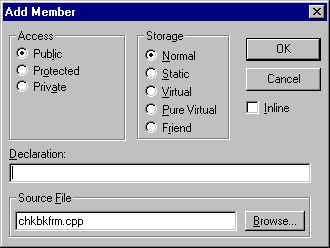
Figure 5-6 Add Member dialog box - Type the member declaration. The member may be a data item (for example, int nCats), a function (for example, int NumCats()), or a typedef (for example, typedef int CATCOUNT). Do not type any storage specifiers into the declaration textbox; these are added by the Class Editor.
- Select the desired access and storage specifiers. Check the Inline check box for an inline function.
- Click OK.
By default, the first eight letters of the class name are used to derive the source filename for new functions. You may change the file name by entering an alternative name in the Source File textbox of the Add Member dialog box.
Deleting a class member
Unneeded class members are easily removed.To delete a class member:
- Select the class member to be deleted.
- Choose Delete from the pop-up menu in the Members pane.
- When the message box requests confirmation, click Yes to delete the member.
Changing member attributes
As your class and hierarchy evolve, you may decide to change certain member attributes. For example, you may want to make a function virtual, or data private.To change a member's access and storage specifiers:
- Select the member you want to change.
- Choose Edit Attributes from the pop-up menu in the
Members pane. The Change Member Attributes dialog
box opens (Figure 5-7).
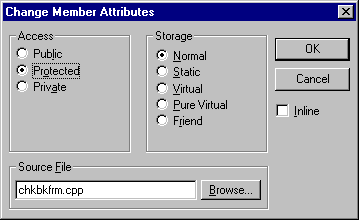
Figure 5-7 Change Member Attributes dialog box - Select the desired access and storage specifiers. Check the Inline check box for an inline function. Click OK.
If you are editing several members' attributes simultaneously and the access specifiers are not identical, a Don't Change option is displayed in the Access group box. Likewise, if the storage specifiers are not identical, a Don't Change option is displayed in the Storage group box. These options let you change other member attributes without affecting the original access or storage of each member. You may, however, select a particular access or storage specifier, and all members are given that attribute. Also, when you are editing several members' attributes, if the inline attributes are not the same, the Inline check box changes to allow three states (checked, unchecked, and grayed, indicating "Do not change") instead of the normal two-state options.
Viewing and editing member source
After declaring your class members, you can extend your functions by editing the function definitions in the Source pane. You also can change data member types, array dimensions, and so on.To view and edit member declarations and function definitions:
- Double-click on the member in the Members pane.
The member's declaration (for data items and pure virtual functions) or definition (for other functions) is displayed in the Source pane. If the source code is not available (as with MFC libraries, for example), the definition is displayed.
- Click in the Source pane to begin editing. Editing operations here are identical to editing operations in other Source windows.
- To save changes, choose Save from the pop-up menu in the Source pane.
Note: If you close the current project before you save a source file you've modified with the Class Editor, you cannot discard the changes or close the file until you reopen the project.
Viewing and editing source files
At times it is useful to view and edit the entire file containing the class declaration or the class's functions. It is necessary, for example, to add the appropriate #include statements to the source files before compiling.To view and edit the header file containing the class declaration:
- Select the class in the Classes pane.
- Choose Show Header from the pop-up menu in the Classes pane. A Source window containing the contents of the class header file is displayed.
- Edit the class declaration as desired.
You may add or delete class members as you would without the Class Editor. However, if you add functions to the declaration, you have to add the function definitions manually to the source file as well.
- Save your changes by choosing Save from the Source window's File menu.
- To close the Source window, choose Close from the File menu.
- Click on the Class Editor window. If you have made changes to the header file, a message box asks whether it is OK to reparse. Click Yes.
- Click on the class whose declaration you just edited to see the member changes updated in the Members pane.
To view and edit the source file containing member function definitions:
- Select a member function from the Members pane.
- Choose Show Source from the pop-up menu from the
Members pane. (Show Source is dimmed if the source
code is not available.)
The file containing the member function's source code is opened for editing in a Source window.
- Edit the member functions as desired.
You may edit member functions as you would without the Class Editor. However, if you change function arguments or return types, or add new functions, you must modify or add the function declarations manually in the header file as well.
- Save your changes by choosing Save from the Source window's File menu.
- To close the Source window, choose Close from the File menu.
- Click on the Class Editor window. If you have made changes to the source file, a message box asks whether it is OK to reparse. Click Yes.
Hierarchy Editor
The Hierarchy Editor provides a graphical view of the class hierarchy. From within the Hierarchy Editor, you may add classes, modify inheritance relationships, and view and edit class member declarations and definitions. With its graphical view of class relationships, the Hierarchy Editor is an especially useful tool when examining unfamiliar source code for the first time.To open a Hierarchy Editor window, do one of the following:
- Choose Hierarchy Editor from the Goto View submenu of the IDDE's Window menu.
- Double-click on the Hierarchy Editor icon in the Views toolbox, or drag the icon to an empty area of the desktop.
To enable the Hierarchy Editor child windows:
- Choose Settings from the Hierarchy Editor's pop-up menu. The Editing/Browsing Settings dialog box opens to the Hierarchy page.
- Check the items labeled Members and Source in the Pop-up Windows group box.
- Click OK.
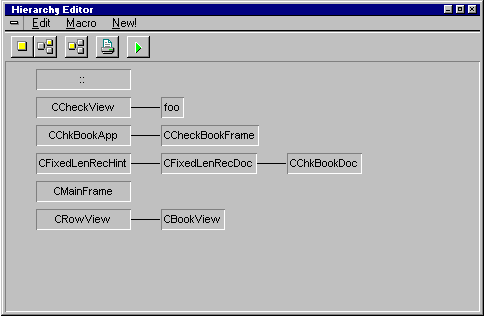
Figure 5-8 Hierarchy Editor window
Unlike the Members and Source panes of the Class Editor, Hierarchy Editor windows are independent. They have their own menus and may be positioned, sized, and closed separately. Otherwise, they behave as do the corresponding panes of the Class Editor. For a complete reference on Hierarchy Editor menus and options, see Hierarchy Editor Reference.
Creating classes
A class hierarchy consists of a number of classes connected by inheritance relationships. You can create new classes related to other classes by inheritance (derived or sibling classes) or new top-level classes not related to any other class.Operations relating to class creation and the establishment of hierarchical relationships are carried out in the Hierarchy Editor's graphical display window.
Creating a top-level class
To create a new class hierarchy, first create a top-level class to serve as a base for the hierarchy.To create a new top-level class:
- Activate the Hierarchy Editor window.
- Choose Add Top from the pop-up menu. The Add Class
dialog box opens (Figure 5-9).
Figure 5-9 Add Class dialog box - Type a name for the new class.
- Click OK.
Creating a derived class
After a base class exists, you may add a specialized version of that class to the hierarchy by creating a derived class.To create a new derived class:
- Select the class that will act as the base class of the new class.
- Choose Add Derived from the pop-up menu.
You can also perform this step with the mouse. Hold the left mouse button down and drag the cursor from the selected class to an empty area of the window. A rubber band line appears as you do this (Figure 5-10). Release the mouse button.
The Create Derived Class dialog box opens (this dialog box is similar to the Add Class dialog box).
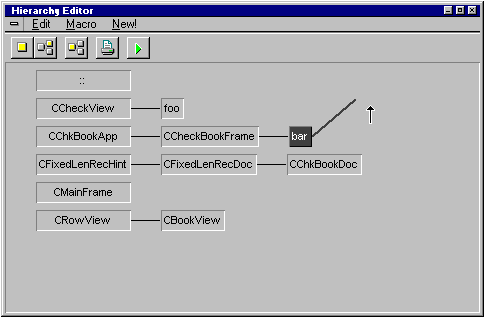
Figure 5-10 Creating a new derived class using the mouse - Type a name for the new class.
- Click OK.
Creating a sibling class
You may also create a new derived class as a "sibling" to an existing class. Sibling classes have the same base class with the same access specifiers.To create a new sibling class:
- Click on the class whose base class is to be the base class of the new class.
- Choose Add Sibling from the pop-up menu. The Create Derived Class dialog box is displayed.
- Type a name for the new class.
- Click OK.
Editing inheritance relationships
As your application evolves, you may want to restructure your class hierarchy. You can add and delete connections between classes, as well as change the inheritance attributes.In altering inheritance relationships, Class and Hierarchy Editors change only the class declarations, not references to base classes and their members in a derived class's constructors or functions. If such references exist, you must change them manually.
Connecting to a base class
You can connect a class to a base class, to make the former a derived class of the latter.To make an existing class a base of another existing class:
- Click on the class that is to be the derived class.
- Choose Connect Base from the pop-up menu. The Add
Base dialog box opens (Figure 5-11).
Figure 5-11 Add Base dialog box - From the listbox, select the class (or classes) that will be the derived class's base class.
- Select the desired access specifier. Check Virtual if virtual inheritance is desired.
- Click OK. The display changes to show the new inheritance relationship.
Deleting a connection
Just as you can connect a class to a base class, you also can disconnect a derived class from a base class.To delete an inheritance relationship:
- Click on the line connecting the base and derived
classes. The line is highlighted to show that it is selected
(Figure 5-12).
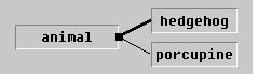
Figure 5-12 Highlighted base-derived connection - Choose Delete Base Connection from the pop-up menu.
- When the message box requests confirmation, click Yes to delete the base connection.
Changing base class
You can move a base class connection to change the base of a derived class.To change a class's base class:
- Click on the line connecting the derived class and its
current base.
The line is highlighted to indicate that it has been selected. Note that at the end nearest the base class, there is a small black box (referred to as the line's "handle").
- Click on the line's handle. Holding down the left mouse button, drag the handle over the class that is to be the derived class's new base class.
- When the message box requests confirmation, click Yes to change the base connection.
Editing inheritance attributes
You can change a derived class's base class access specifier and virtual inheritance flag.To edit the base class access specifier:
- Click on the line connecting the base and derived classes. The line is highlighted to show that it is selected.
- Choose Edit Base Attributes from the pop-up
menu. The Edit Base Attributes dialog box opens
(Figure 5-13).
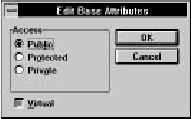
Figure 5-13 Edit Base Attributes dialog box - Select the desired access specifier. Check Virtual if virtual inheritance is desired. Click OK.
Working with class members
After creating a class, you can implement its functionality through member data and functions. You may add, delete, and edit class members through the Members and Source child windows.A list of members of the currently selected class is displayed in the Members child window (Figure 5-14). By default, the member list is sorted into three categories: Data, Functions, and Typedefs. Within each of these categories, items are sorted alphabetically. The colored diamond in front of each member identifies the access as public (green), protected (yellow), or private (red). Lists following each category header can be collapsed or expanded by clicking on the triangular button to the left of the category name.
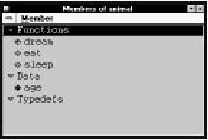
Figure 5-14 Members child window
Adding a class member
The first step in class implementation is to declare the data and function members.To add a class member:
- Activate the Members child window.
- Choose Add from the Member menu or from the
pop-up menu. The Add Member dialog box opens
(Figure 5-15).
Figure 5-15 Add Member dialog box - Type the member declaration. The member may be a data item (for example, int nDogs), a function (for example, int NumDogs()), or a typedef (for example, typedef int DOGCOUNT). Do not type any storage specifiers into the declaration textbox; these are added by the Hierarchy Editor.
- Select the desired access and storage specifiers. Check the Inline check box for an inline function.
- Click OK.
By default, the first eight letters of the class name are used to derive the source file name for new functions. You can change the file name by entering an alternative name in the Source File textbox of the Add Member dialog box.
Deleting a class member
Unneeded class members are easily removed.To delete a class member:
- Select the class member to be deleted.
- Choose Delete from the Member menu or from the pop-up menu.
- When the message box requests confirmation, click Yes to delete the member.
Changing member attributes
As your class and hierarchy evolve, you may need to change certain member attributes. For example, you may want to make a function virtual, or data private.To change a member's access and storage specifiers:
- Select the member to be changed.
- Choose Edit Attributes from the Member menu or from
the pop-up menu. The Change Member Attributes
dialog box opens (Figure 5-16).
Figure 5-16 Change Member Attributes dialog box - Select the desired access and storage specifiers. Check Inline for an inline function. Click OK.
The class declaration in the header file is modified and the Members display is updated to reflect the changes.
Viewing and editing member source
After declaring your class members, you can extend your functions by editing the function definition in the Source child window. Also, you can change data member types, array dimensions, and so on.To view and edit member declarations and function definitions:
- Double-click on the member in the Members child
window.
The member's declaration (for data items and pure virtual functions) or definition (for other functions) is shown in the Source child window.
- Click in the Source child window to begin editing. Editing operations here are identical to those in other Source windows.
- To save changes, choose Save from the pop-up menu.
Viewing and editing source files
At times it is useful to view and edit the entire file containing the class declaration or the class's functions.To view and edit the header file containing the class declaration:
- Click on the class in the Hierarchy Editor window.
- Choose Show Header from the pop-up menu.
A Source window containing the contents of the class header file opens.
- Edit the class declaration as desired.
You may add or delete class members as you would without the Hierarchy Editor. However, if you add function declarations, you must add the function definitions to the source file manually as well.
- Save your changes by choosing Save from the Source window's File menu.
- To close the Source window, choose Close from the File menu.
- Click on the Hierarchy Editor window. If you have made changes to the header file, a message box asks whether it is OK to reparse. Click Yes.
- Click on the class whose declaration you just edited to see the member changes updated in the Members window.
- Select a member function from the Members child window.
- Choose Show Source from the Member menu or from
the pop-up menu.
The file containing the member function's source code is opened for editing in a Source window.
- Edit the member functions as desired.
You may edit member functions as you would without the Hierarchy Editor. However, if you change function arguments or return types, or add new functions, you must modify or add the function declarations manually in the header file as well.
- Save your changes by choosing Save from the Source window's File menu.
- To close the Source window, choose Close from the File menu.
- Click on the Hierarchy Editor window. If you have made changes to the source file, a message box asks whether it is OK to reparse. Click Yes.